Color Adjustment |
  
|
Color Adjustment |
|
You can begin color correction by selecting items from the Colors menu. Before you begin, make sure you have the correct layer selected in the Layers list.
Note: Only image layers can be adjusted, so if you have non-image layers among the selected layers, you will be prompted to rasterize them before continuing.
There are several color adjustment tools:
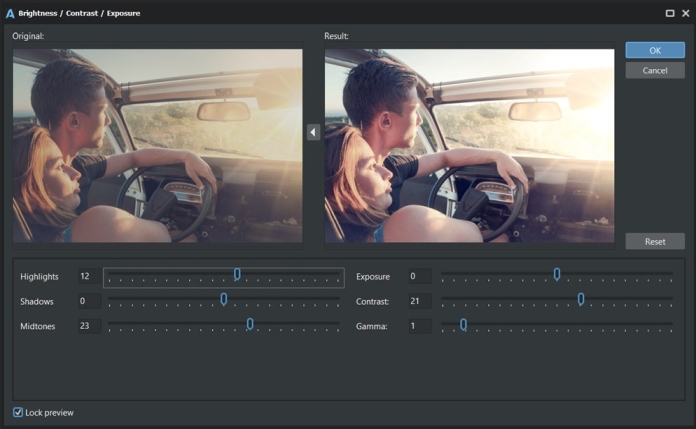
Brightness/Contrast/Exposure.
Brightness can be adjusted separately for Highlights, Mid-tones and Shadows.
Exposure control allows you adjust the overall brightness and contrast of an image to enhance its appearance.
You can also adjust Contrast (modern algorithm is used here) and Gamma (to adjust the overall brightness and tonal balance of an image, especially in the midtones).
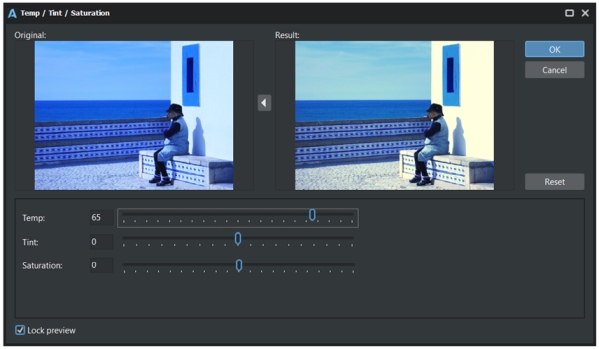
Use the Temperature and Tint sliders to adjust the white balance, specifically the warmth or coolness (temperature), and the magenta or green (tint) of the image.
The saturation slider controls the intensity of colors.
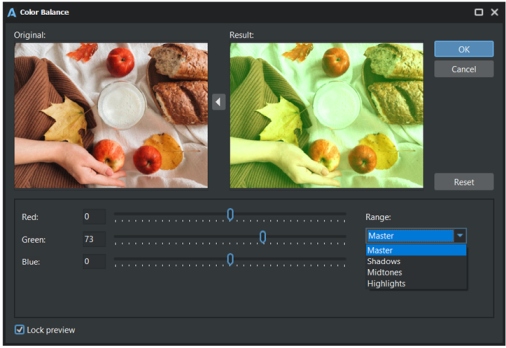
Adjust the balance of red, green, and blue in the image. It can be applied independently of pixel brightness (Master) or by range: for shadows, midtones, and highlights.
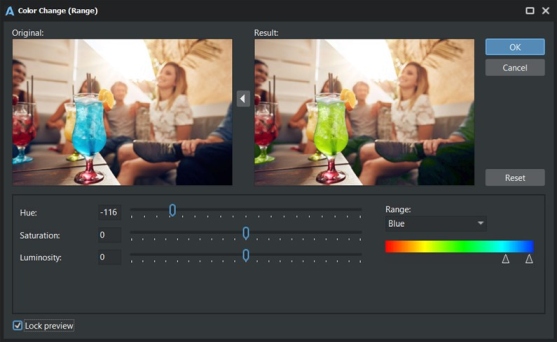
Smooth change of hue, saturation and luminosity for the selected color range.
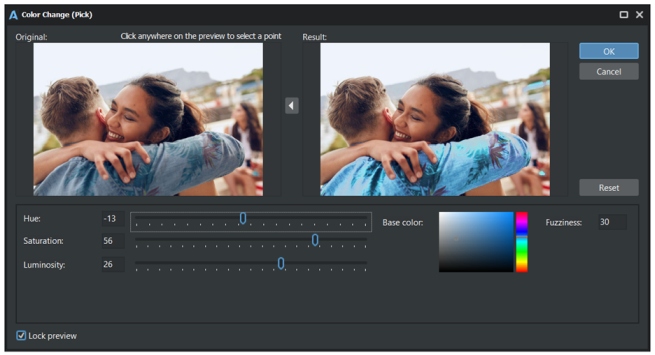
Smooth change of hue, saturation and luminosity for the picked color. You need to click at the Original photo preview to select the color. Also edit the Fuzziness parameter for optimal result.
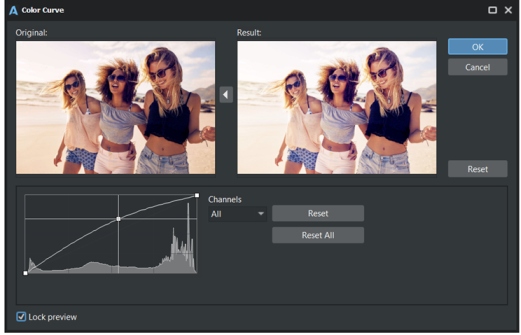
Color Curve displays a histogram of the colors of an image, and allows adjustment using a color curve.
The following actions are available when editing a color curve:
•Left-click outside the curve to add a new curve point
•Left-click on a curve point to drag it to a new position
•Right-click on a curve point to remove it
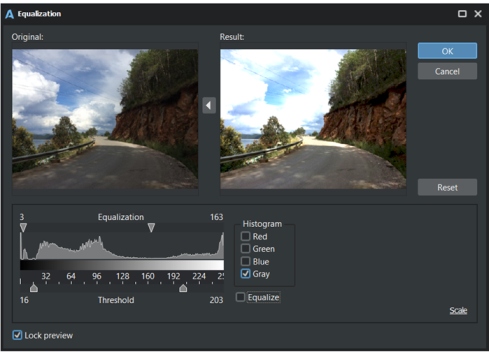
Equalize the color histogram of the selected region in the range from Low value to High value.
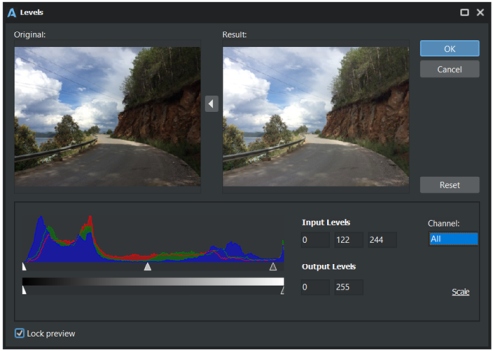
Adjust levels in a photo using input and output levels. Input levels define the range of tonal values that will be mapped to the output range, while output levels determine the final black and white points of the image.
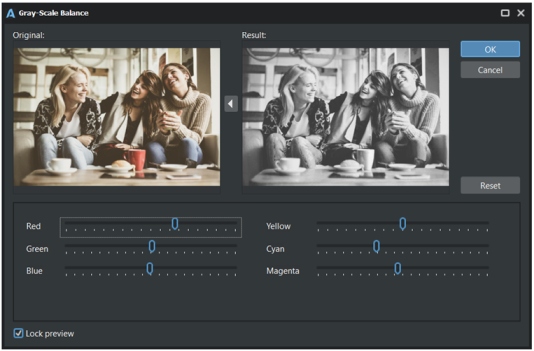
Convert image to gray scale, and adjust the brightness for different color ranges: red, green, blue, yellow, cyan, magenta.
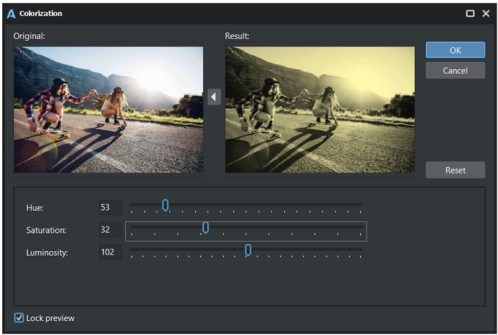
Allows you to tint an image with a single color. It works by removing the original colors from an image and replacing them with a chosen hue, saturation and luminosity.
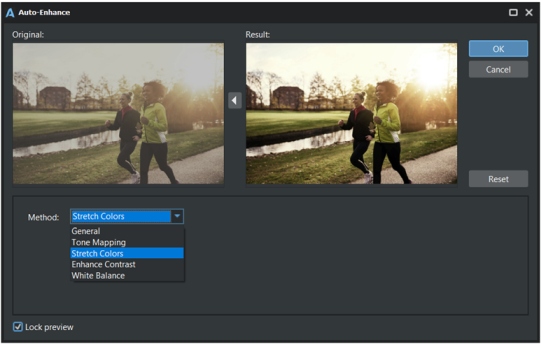
Automatically enhance am image using one of the following methods: General, Tone Mapping, Stretch Colors, Enhance Contrast, White Balance.
"Colors" menu also offers some additional adjustment tools:
1.Swap colors;
2.Negative;
3.Black & White;
4.Remove Red Eyes.