Generative AI |
  
|
Generative AI |
|
AlterPhoto uses Stability.ai API to provide AI tools for photo editing.
To start using AI features, you need to register an account: https://platform.stability.ai/
After registration, you will receive free credits.
After that, go to the "API Keys" section and create your API key. Copy it, return to AlterPhoto and select from the main menu:
Generative AI -> API Key...
Paste your API key there and click "OK". Now you can start using AI features.
All generative AI functions are available from the main menu -> Generative AI.
Select the area on the image layer that you want to delete. For example, select passersby that you do not want to see.
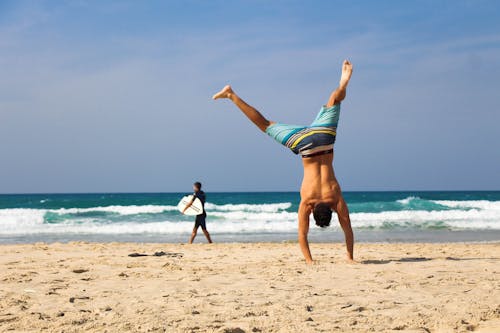
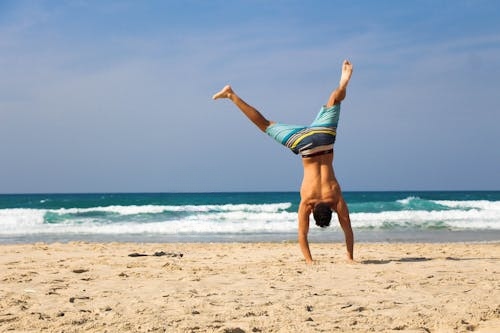
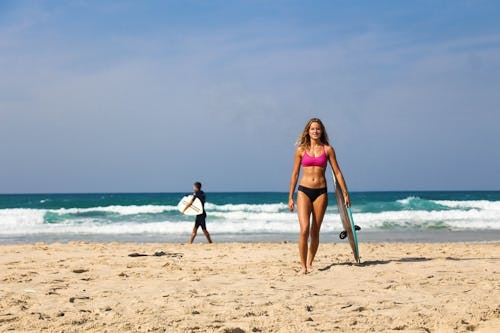
Write a description of what you would like to see instead of the selected area.
Description used in this example:
Young female surfer.
Instead of selecting an area on the image, you describe it in text form.
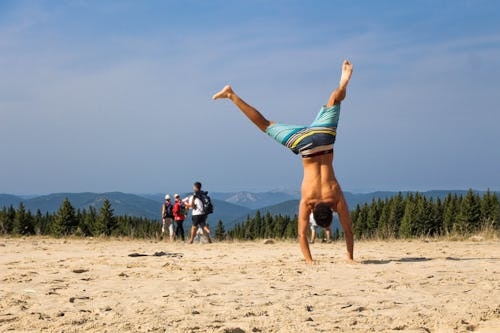
In this example:
Object that must be found: Ocean
What should replace the found object: Mountains
Instead of selecting an area on the image, you describe it in text form.
In this example:
Object that must be found: Sky
How the object must be recolored: Dark evening sky
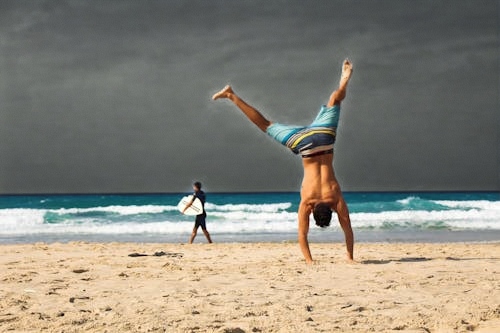
The main subject on the photo will be identified and everything else will be cut out.
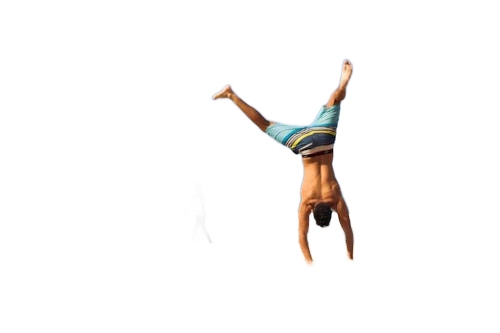
The main subject in the photo will be identified and everything else will be replaced by the described background.
In this example, the description of new background: Beach in the evening
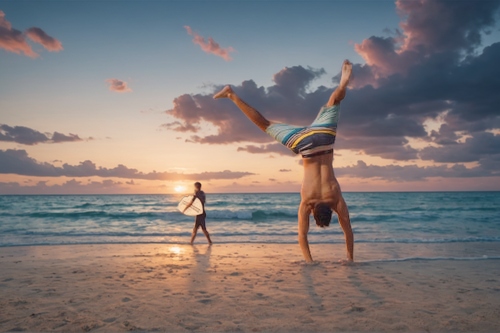
Expand the photo borders in any direction. You need to specify how many pixels the canvas size should be increased in each direction. The program will draw new parts of the photo.
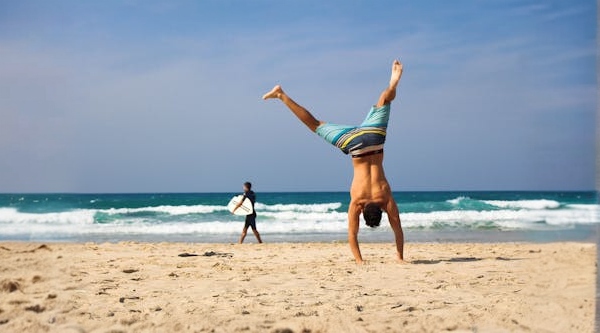
This function allows you to increase the size of the image (to stretch), with minimal loss of quality.
There are 3 types of processing offered here:
1. Conservative
Increases the resolution of images while maintaining their original appearance, delivering output resolutions up to 4 megapixels. This tool works effectively even with 64x64 pixel images, directly upscaling them to 4 megapixels.
2. Creative
Designed for heavily degraded images (less than 1 megapixel), this tool uses creativity to create high-quality output images with unique touches.
3. Fast
This fast and efficient tool is ideal for improving the quality of compressed images, making it a great choice for social media posts and other similar purposes.
In order to perform the stretching procedure, you need to describe the original image in as much detail as possible.
For this example, the following description was used:
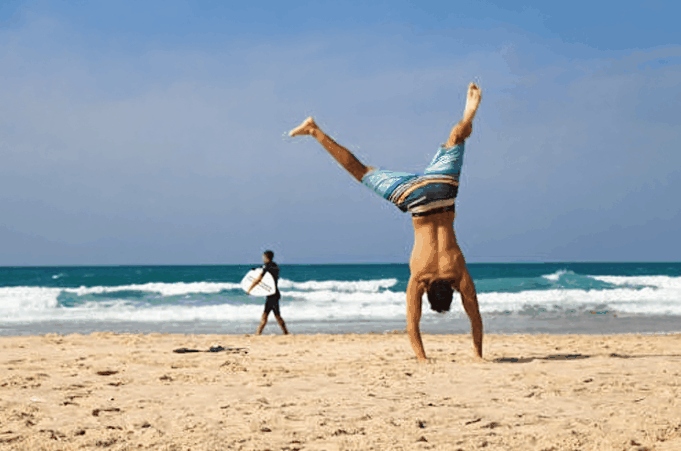
The ocean shore. In the distance, at the very water, a man is walking, holding a surfboard. In the foreground, a man is standing on his hands with his back to the camera.
You can also apply AI preset to your photos in one click. In the main menu, select:
Generative AI -> Apply Preset -> choose category -> choose desired preset
More info about AI presets you can found here.