Opening Files |
  
|
Opening Files |
|
In AlterPhoto Photo Editor You can open new files in few ways:
Select in the main menu -> File -> Open,,,
You will see a Mark and Open dialog.
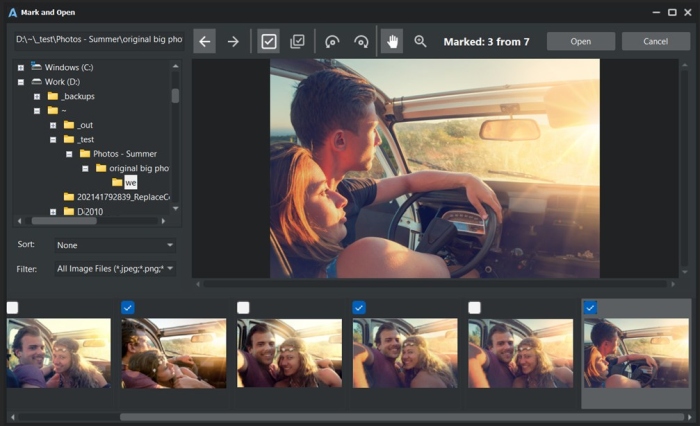
On this window you can browse and select the folder with the photos you want to open. When folder is chosen, the next step is to mark the photos which you want to open.
You can utilize the button "Mark" (or spaceboar) and the left/right arrow keys on keyboard for quick switching between the images and marking the ones you want to open. This process is called "Culling".
When desired images are marked, click "Open" button to import the images into the program.
WARNING! If some photo is already open in the program, the small red triangle is drawn in the right top corner of the photo thumbnail.
Drag and drop files from Windows to program interface.
Select in the main menu File -> Open Recent -> ...
You can select the file from the list of recent files.
Open directly from the Windows Explorer either by double-clicking on the graphic file, either by selecting "Open with -> AlterPhoto" from the popup menu. But in this case you may need at first to associate the graphic file extensions with AlterPhoto.
To do it, select in the main menu: File -> Set File Associations.
When new image is open, the new tab and new project is created in AlterPhoto. By default, its name is the same as the image name.
If the file format contains multiple frames or pages (e.g. PDF), then multiple tabs are created, one per page.